
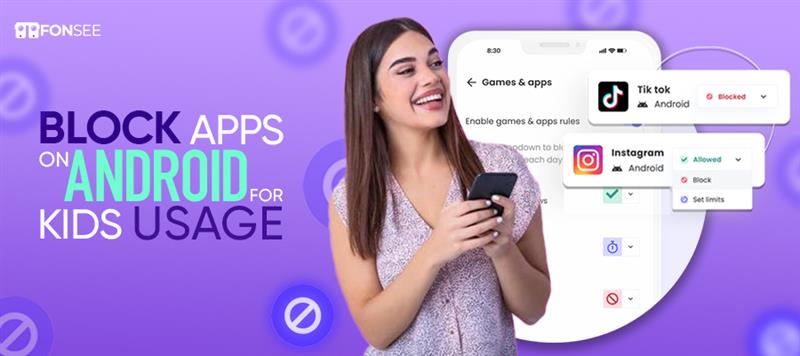
Installing random apps on an Android device can expose users to malware, inappropriate content, excessive screen time, and unnecessary security risks. For parents, unrestricted app downloads may allow children to access games, social media platforms, or messaging apps that are not suitable for their age. In business environments, employees may install unauthorized applications that compromise sensitive company data or reduce productivity. That is why many people look for ways to block apps from downloading remotely. Fortunately, Android offers several methods to manage and restrict app installations remotely, depending on the device setup and parental control solution.
From built-in tools like parental controls to advanced mobile monitoring software. Users can control what gets installed and prevent unwanted downloads with just a few clicks. These solutions help maintain a safer digital environment while ensuring that devices are used according to established rules and policies.
In this guide, you’ll learn how to block downloading apps on Android remotely using different approaches. We’ll cover the most effective methods, explain their requirements, and share best practices for preventing unwanted app installations while keeping Android devices secure and under control.
Why Should You Block App Downloads on Android?
Without restrictions, anyone using the device can install apps that may contain malware, request excessive permissions, consume storage, or expose personal and sensitive information.
For parents, blocking app downloads ensures children cannot install games, social media platforms, or other apps that are unsuitable for their age without permission. It also helps reduce excessive screen time and encourages safer online habits.
In workplaces, preventing unauthorized app installations keeps company-owned devices secure and minimizes the risk of data leaks, productivity loss, and compliance issues. Employees are limited to approved business applications, reducing potential cybersecurity risks.
Whether you’re managing a child’s phone or a company device, restricting app downloads is a proactive way to maintain security, improve privacy, and ensure the device is used only for its intended purpose.
How Can I Block Apps from being Downloaded
Blocking app downloads on Android helps prevent unwanted installations, reduces security risks, and ensures the device is used as intended. Whether you’re a parent protecting your child or an employer managing company-owned devices, Android provides multiple ways to restrict app installations using built-in settings, parental controls, or remote monitoring solutions.
Note: You must follow the methods and steps to block apps from being downloaded and used on Android.
Method#1: Use FonSee Parental Control App
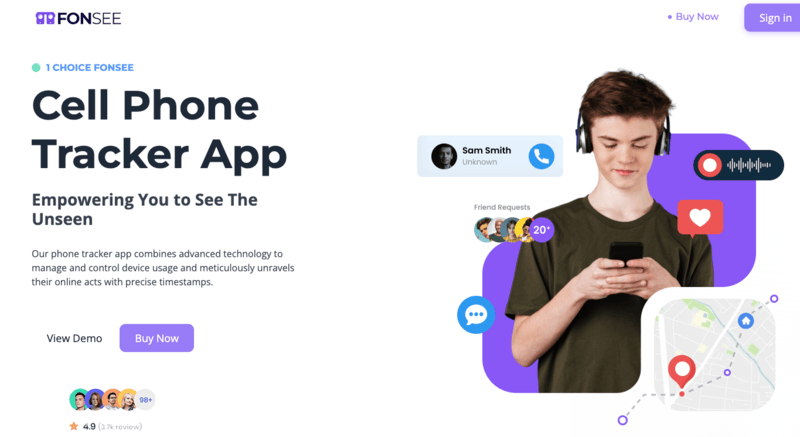
One of the most effective ways to block app downloads on an Android device remotely is by using the FonSee Parental Control App. It allows parents to manage their children’s devices from an online dashboard without needing physical access. Besides monitoring device activity, FonSee helps reduce the risk of unauthorized app installations by giving parents greater control over how the device is used.
After installing FonSee on the monitored Android device and completing the setup process, sign in to your FonSee dashboard from any web browser. The dashboard lets you remotely monitor device activity and apply restrictions without handling the phone directly.
To prevent unwanted app downloads:
- Install and configure FonSee on the target Android device.
- Log in to your FonSee online dashboard using your account.
- Navigate to the App Activity section to view installed applications.
- Use the App Blocking feature to restrict access to apps that are already installed and prevent their use.
- Create schedules or usage rules to limit access to the Google Play Store or other app marketplaces, if supported on the device.
Enable alerts so you’re notified whenever a new application is installed, allowing you to take immediate action if necessary.
In addition to app management, FonSee provides several features that help keep Android devices secure. You can monitor app usage, track browsing activity, review screen time, view location history, monitor social media activity, and receive real-time updates about important device events. These insights make it easier to identify risky behavior before it becomes a problem.
Method #2: Set Up Google Play Parental Controls
Google Play Store includes built-in parental controls that help restrict access to apps, games, movies, and other content based on maturity ratings. While this feature doesn’t completely prevent all app downloads, it can block children from downloading apps that exceed the age rating you choose.
Follow these steps to enable Google Play parental controls:
- Open the Google Play Store on the target Android device.
- Tap your profile icon in the top-right corner.
- Select Settings.
- Expand the Family section.
- Tap Parental controls.
- Turn Parental controls on.
- If prompted, create a 4-digit PIN and tap OK. This PIN prevents others from changing the settings.
- Tap Apps & games.
- Choose the highest content rating you want to allow for the device.
- Tap Save to apply the restrictions.
Once enabled, Google Play will only display and allow downloads of apps and games that match the selected age rating. Keep in mind that parental controls apply only to content downloaded through the Google Play Store. They do not prevent apps from being installed from third-party app stores or APK files unless those installation sources are also restricted.
Method #3: Family Link Option
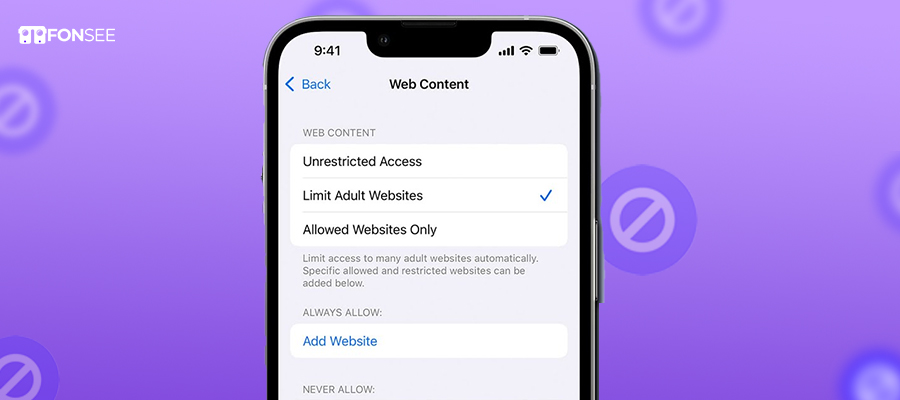
Google Family Link allows parents to control app downloading from the Play Store. Parents must connect the Family link, which empower to allow apps that kids can use and download from the Play Store. When kids start downloading an app, parents can get a notification about the app to decline or approve it to proceed.
Here are the steps that enable you to use the Family Link app’s blocks on kids’ Android phones.
- Log in to the parents’ and the child’s Google accounts on the device
- Open the Family Link app after downloading it on the parent’s phone
- Press on View All Apps to see the available app lists.
- Choose all the apps you won’t allow your children to access and click the Block App button.
Method #4: Restrict App Permissions on Android
Different apps require various permissions such as photo access, camera, microphone, location, and storage. If you don’t want apps to receive specific permissions, you can turn them off. But you’ve to follow the steps below.
- Open Android settings
- Click on the apps & notifications button and see the list on your device
- Press on the app you want to change permissions for
- Turn off all or a few permissions you wish to restrict
- Now you’re able to turn off app permissions from the app & notifications
- Click the icon and choose the permission to see available features.
Method #5: Block Apps On Android Being Auto-Update
Auto-update allows you to get the latest version of a specific app automatically. Still, a new and updated version sometimes comes with unpredictable dangers that need to be controlled on a child’s device.
So, if you want to block auto-updates on your child’s device, you can follow the steps given.
- Open the Play Store and press on the profile icon in the top right corner
- Click on the settings button
- Press on the network preference
- Choose the auto-update option
- Now, click on the ” Don’t auto-update app button.
Common Errors When Setting Up App Download Restrictions
Restricting app downloads on Android is an effective way to improve security, but small configuration mistakes can make those restrictions less effective. Avoid these common errors to ensure your settings work as intended:
- Not setting a secure PIN or password: If others know your PIN, they can easily disable parental controls or change your restrictions.
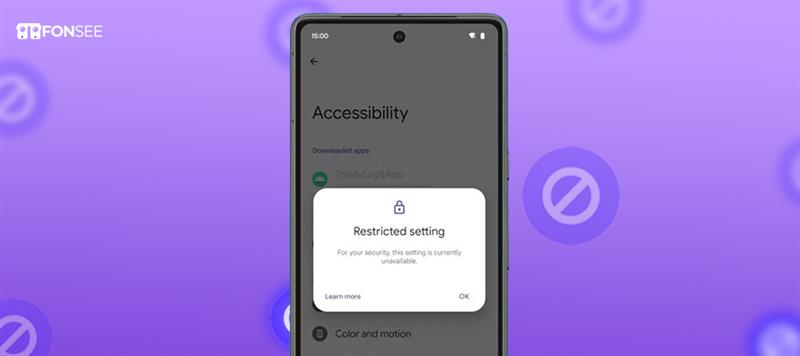
- Ignoring third-party app stores: Google Play parental controls only apply to the Play Store. If app installation from unknown sources is enabled, users may still install apps through APK files or alternative app stores.
- Forgetting to disable “Install Unknown Apps”: Allowing browsers or file manager apps to install APK files can bypass Play Store restrictions.
- Using outdated Android software: Older Android versions may lack the latest security features and parental control options. Keep the device updated whenever possible.
- Not reviewing installed apps regularly: Users may have installed unauthorized apps before restrictions were enabled. Periodically check the installed apps and remove any that are not approved.
- Relying on a single protection method: Combining Google Play parental controls with a parental control or device management app provides stronger protection and better visibility into device activity.
By avoiding these mistakes, you can create a more secure Android environment and significantly reduce the chances of f app installations.
Conclusion
Preventing unwanted app downloads is an important step toward creating a safer digital environment for both children and employees. By combining Android’s built-in parental controls with a trusted monitoring solution like FonSee, you can reduce security risks, limit access to inappropriate apps, and encourage responsible device usage. Choose the method that best fits your needs, review your settings regularly, and keep the device updated to ensure your app restrictions remain effective over time.
Frequently Asked Questions
Can I block app downloads on Android without installing a third-party app?
Yes. Android offers built-in options such as Google Play Parental Controls and Family Link to restrict app downloads based on age ratings and parental approval. However, these tools have limitations and may not prevent installations from third-party sources unless those are also disabled.
Can I block app downloads remotely?
Yes, but this depends on the solution you use. Mobile monitoring and parental control apps with remote management capabilities allow you to manage device settings, monitor app activity, and apply restrictions without physically accessing the device. Some Android management solutions also support remote policy enforcement on enrolled devices.
Will Google Play Parental Controls block all app installations?
No. Google Play Parental Controls only restrict apps downloaded from the Google Play Store based on content ratings. They do not stop users from installing APK files or apps from third-party app stores unless “Install Unknown Apps” is disabled.
How do I stop someone from installing APK files on Android?
Go to Settings > Apps > Special app access > Install unknown apps (the exact path may vary by device) and disable permission for browsers, file managers, and other apps that can install APK files. This helps prevent installations from unknown sources.
Can I block specific apps from being downloaded?
Yes. If you’re using Google Family Link, you can require parental approval before apps are downloaded. Some parental control and mobile device management apps also let you block or restrict specific applications.
Is blocking app downloads useful for businesses?
Yes. Organizations often restrict app installations on company-owned Android devices to improve security, protect sensitive data, and ensure employees only use approved business applications.
Can users remove app download restrictions?
If they know the parental control PIN, the administrator password, or have administrator access to the device, they may be able to remove the restrictions. Using a strong PIN and limiting administrative access helps keep restrictions secure.
What’s the best way to prevent unauthorized app installations?
For the best protection, use multiple security measures together. Enable Google Play Parental Controls, disable app installation from unknown sources, keep Android updated, and use a trusted parental control solution to monitor and manage the device remotely.