
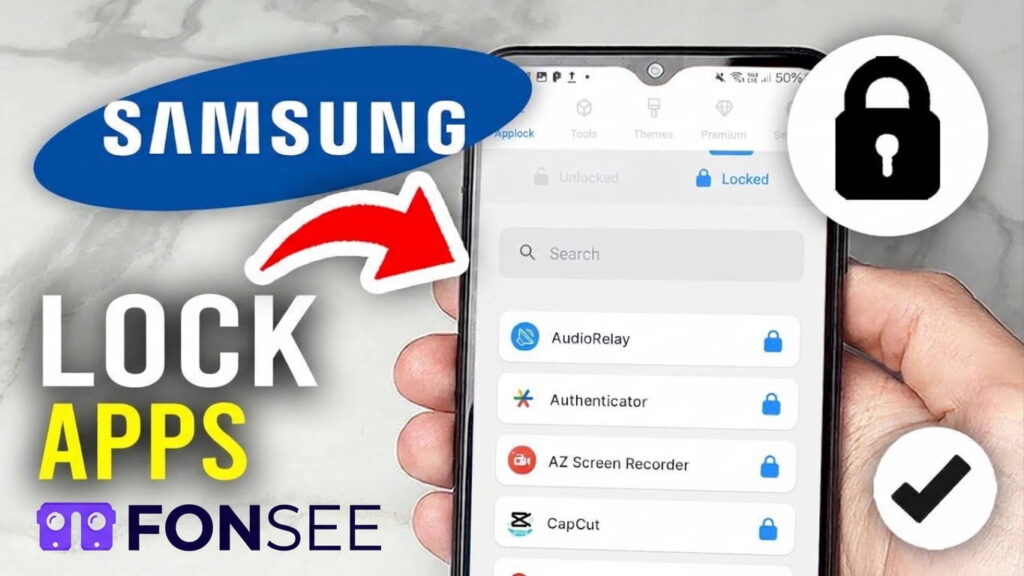
Samsung smartphones contain sensitive data, including social media accounts, private messages, photos, banking applications, and browsing history. Whether you want to protect your personal apps or manage your child’s smartphone usage, Samsung offers several built-in security options. Learning how to lock apps on Samsung Android phones is essential for anyone who wants to protect personal information, maintain privacy, or manage application access.
Samsung offers several built-in security features, including Secure Folder and screen-lock protection. Users can also explore third-party applications for additional control over app access.
In this guide, we will explain different ways to lock apps on Samsung Galaxy phones, discuss their advantages and limitations, and explore how FonSee can help parents manage applications and create a safer smartphone environment for their children.
Does Samsung Have a Built-In App Lock Feature?
One important thing to understand is that Samsung does not offer a universal, traditional app-lock feature on every Galaxy phone. The available options depend on the model and One UI version.
Instead, Samsung provides security tools that help users protect private applications and restrict access in different ways.
The main options include:
- Secure Folder: Keeps selected apps and personal files inside a password-protected space.
- Samsung Parental Controls: Allows parents to manage permitted apps on supported Galaxy devices.
- Google Family Link and Android parental controls: Help parents set app limits and manage access.
- Third-party parental control applications: Provide additional app management and usage controls.
If you want to protect personal applications from someone accessing your unlocked phone, Secure Folder is a useful starting point. If your goal is to manage which applications your children can use, parental control tools may be more appropriate.
How to Lock Apps on Samsung Using Secure Folder
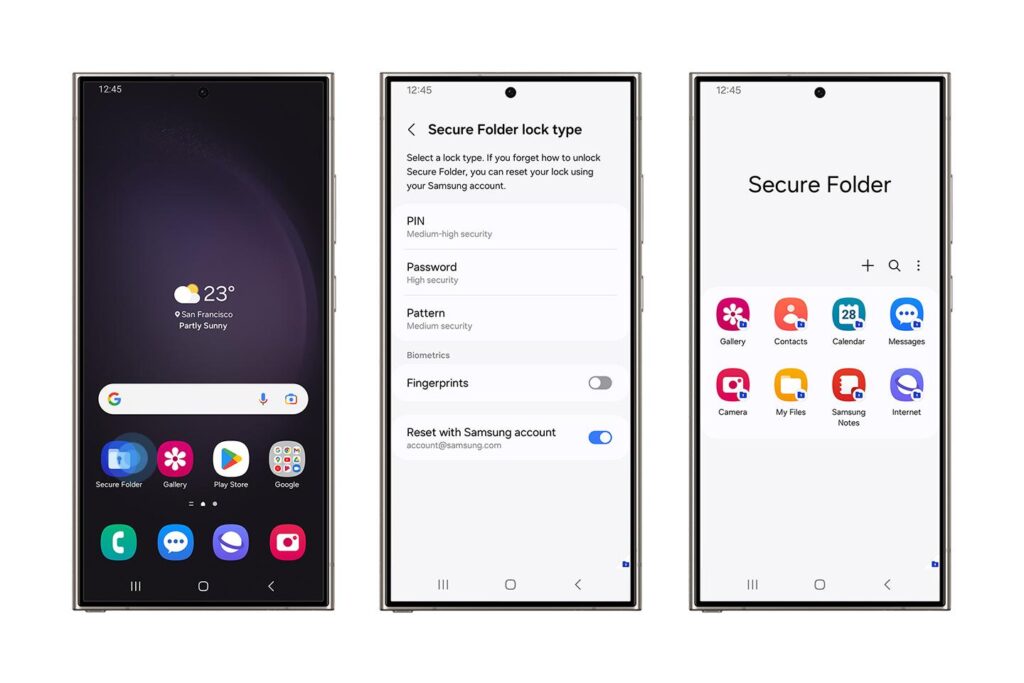
Samsung Secure Folder is one of the most useful built-in security features for protecting private applications and files.
It creates a separate, protected space on your Galaxy device. You can add applications, photos, documents, and other content to this area and secure it with a PIN, password, pattern, or supported fingerprint authentication.
Follow these steps to configure it.
Step 1: Open Settings
Unlock your Samsung phone and open the Settings application.
Step 2: Find Secure Folder
Navigate to:
Settings → Security and privacy → More security settings → Secure Folder.
The exact menu names may vary depending on your Samsung model and software version.
Step 3: Sign in to your Samsung Account
Follow the on-screen instructions. You may need to sign in to your Samsung account to complete the setup.
Step 4: Choose a Lock Method
Select your preferred security method. Depending on your device, you can choose:
- PIN
- Password
- Pattern
- Fingerprint
Choose a method that is difficult for other people to guess.
Step 5: Add Applications to Secure Folder
Open Secure Folder and tap the Add apps (+) option.
Select the applications you want to protect and add them to the folder.
For example, you might add:
- Gallery
- Banking applications
- Personal messaging applications
Step 6: Lock Secure Folder
Once you have added your applications, exit Secure Folder and use its locking options.
You can also configure automatic locking by navigating to:
Secure Folder → More options → Settings → Auto lock Secure Folder.
Depending on your One UI version, you can select when the folder should lock automatically.
You can manually secure it by opening the More options menu and selecting Lock and exit.
Samsung ch+2
Advantages of Secure Folder
Secure Folder provides several benefits:
- Protects private applications with an additional authentication method.
- Keeps selected files separate from the main storage area.
- Uses Samsung Knox security protections.
- Allows users to hide the Secure Folder icon.
- Provides an additional layer of privacy even when the main phone is unlocked.
Limitations of Secure Folder
Secure Folder is not exactly the same as locking individual applications in the main app drawer.
It creates separate copies of supported applications inside its protected environment. You may need to sign in to those applications again, and their data may be separate from the original versions.
If you want to restrict your child’s access to games or social media applications, Secure Folder may not be the most convenient solution.
How to Manage Apps Using Samsung Parental Controls
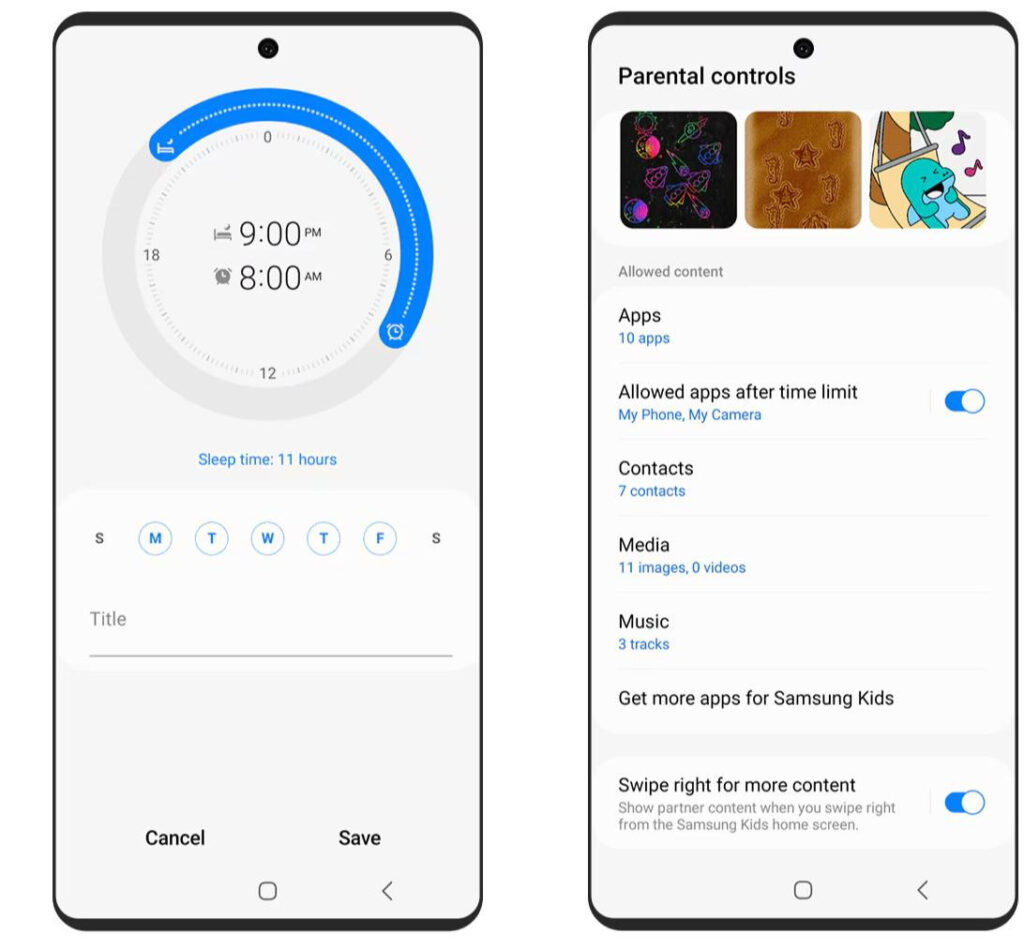
Parents who want to manage their children’s Samsung phones can also explore Samsung’s built-in parental control options.
Samsung Account family features allow parents or guardians to manage app permissions on supported Galaxy devices.
The available controls depend on the One UI version. For example, Samsung’s newer family controls provide an Allowed apps section on supported versions.
Follow these steps:
- Open Settings on the parent’s Samsung device.
- Tap the Samsung account name at the top.
- Open Family.
- Select your child’s profile.
- Find Allowed apps or Allowed Samsung apps, depending on the One UI version.
- Review the available applications.
- Turn off access to applications you do not want your child to use.
- Save your changes.
On supported devices, blocked applications may become hidden or appear grayed out until parental approval is granted.
Benefits of Samsung Parental Controls
This option can help parents:
- Manage access to supported applications.
- Approve or deny app requests.
- Set boundaries around children’s app usage.
- Keep inappropriate or unnecessary applications away from younger users.
Limitations
Samsung’s family controls are not a universal password-based app locker. Their availability and supported app controls depend on the device, software version, account configuration, and region.
Parents who need additional app-blocking schedules or broader activity management may want to consider a dedicated parental control application.
How to Use Google Family Link to Restrict Apps
Google Family Link is another option for parents who want to manage their children’s Android devices.
It helps parents supervise app access, set screen-time limits, and establish digital boundaries.
How to set it up:
- Install Google Family Link on the parent’s device.
- Sign in using the appropriate Google account.
- Follow the instructions to connect your child’s account.
- Select your child’s profile.
- Open the screen-time or app-management section.
- Select an application.
- Set an appropriate usage limit or block access where supported.
Google also provides parental controls directly in supported Android versions. These can include app limits and app-blocking options.
The exact features depend on the Android version and account setup.
Benefits of Google Family Link
- Set daily screen-time limits.
- Manage supported applications.
- Establish age-appropriate digital boundaries.
- Help children develop healthier smartphone habits.
Limitations
Family Link is designed primarily for parental supervision and does not work like a traditional password-based app locker. Some restrictions also depend on the child’s account age, device configuration, and Android version.
For parents looking for additional app management options, FonSee is another solution worth considering.
How to Lock or Block Apps on Samsung Using FonSee
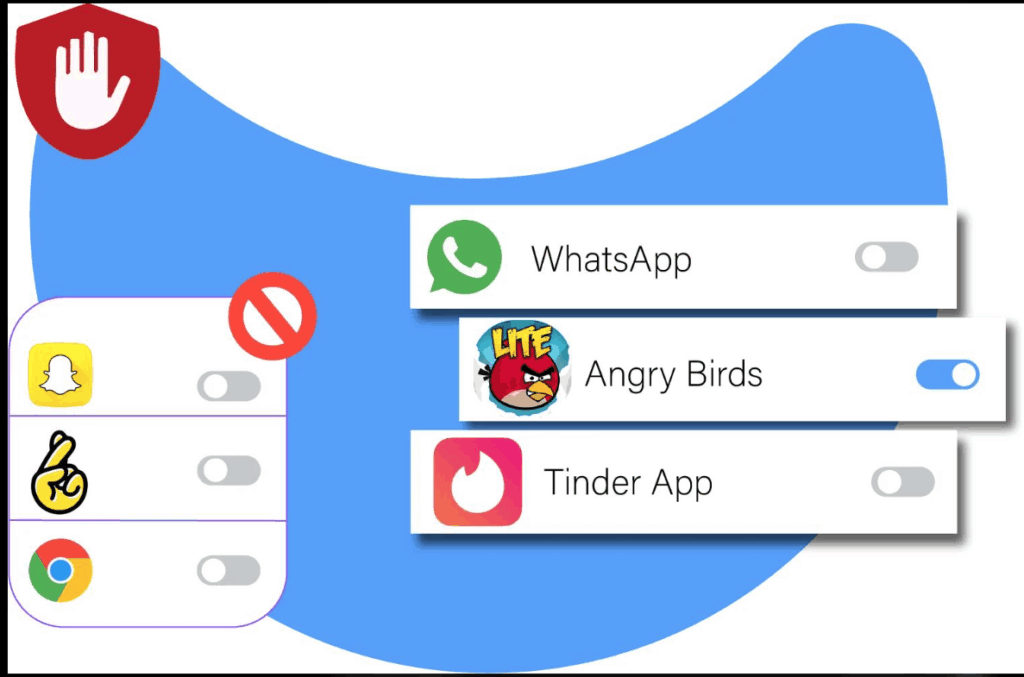
If you are a parent who wants more control over your child’s Samsung smartphone, FonSee offers an additional way to manage applications and establish digital boundaries.
Unlike Samsung Secure Folder, which primarily protects private content, FonSee focuses on parental supervision and application management.
Its app blocking feature allows parents to restrict selected applications on supported Android devices. This can be useful when children spend too much time playing games, browsing social media, or using distracting applications during study and sleeping hours.
Key FonSee Features for Managing Samsung Apps
Block Selected Applications
FonSee allows parents to pause access to selected applications on supported family phones.
For example, if your child spends too much time playing mobile games, you can use the app blocking feature to restrict access to those games.
Parents can also establish restrictions for distracting social media applications while keeping essential applications available.
Create App Usage Boundaries
Children often struggle to balance entertainment, education, and other responsibilities.
FonSee helps parents establish predictable application restrictions around daily activities.
For example:
- Restrict gaming applications during homework.
- Limit social media access during study hours.
- Pause entertainment applications at bedtime.
- Keep essential communication applications accessible.
- Establish reasonable smartphone routines.
Monitor Application Usage
Understanding how children use their smartphones is just as important as restricting access.
FonSee provides app usage information that helps parents understand which applications receive the most attention.
This information can help parents identify excessive usage patterns and discuss healthier smartphone habits with their children.
Manage Apps Through an Online Dashboard
FonSee provides an online dashboard for managing supported parental control features.
Parents can use the dashboard to review available application controls and manage selected restrictions without relying exclusively on the child’s phone interface.
Manage Website Access
Application restrictions are only one part of digital safety. Children can encounter inappropriate material through websites and online browsing.
FonSee includes website blocking controls for supported devices, helping parents establish additional browsing boundaries.
Why Choose FonSee for Samsung Parental Control?
FonSee can be a useful option for parents who want more than basic phone privacy protection.
| Feature | How it helps parents |
| App blocking | Restricts selected applications |
| App usage | Helps understand smartphone habits |
| Website blocking | Establishes browsing boundaries |
| Online dashboard | Manages supported parental controls |
| Usage routines | Supports homework and bedtime rules |
Can You Use Third-Party App Lockers on Samsung?
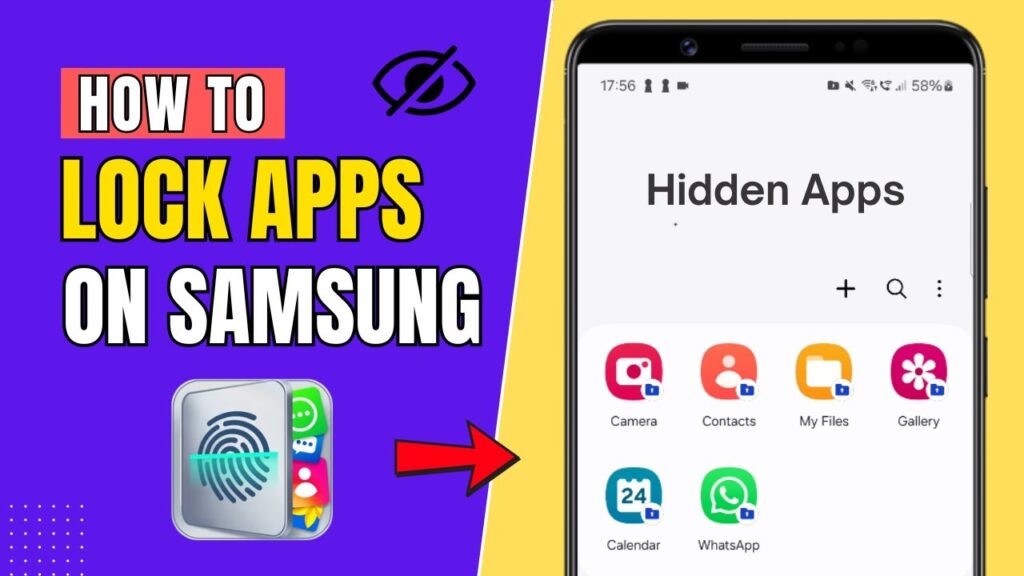
Yes. Another option is to install a third-party application locker from a trusted source.
These applications are designed to add authentication protection to selected applications.
Depending on the app and Android version, you may find features such as:
- PIN-based application protection.
- Password protection.
- Fingerprint authentication.
- Pattern-based locking.
- Automatic locking after leaving an application.
- Protection for selected social media and messaging apps.
How to Use a Third-Party App Locker
- Open Google Play Store.
- Search for a reputable app-locking application.
- Review its developer information, permissions, privacy policy, and recent reviews.
- Install the application.
- Complete the initial setup.
- Create a PIN, password, or pattern.
- Select the applications you want to protect.
- Test the locking feature.
Are Third-Party App Lockers Safe?
Not every app locker is trustworthy. Some applications request extensive permissions to monitor application activity or display locking screens over other apps. Poorly designed tools may also contain intrusive advertisements or create privacy risks.
Before installing one, check its permissions, developer reputation, update history, and privacy practices.
Also remember that third-party app lockers may have limitations. They are not guaranteed to prevent every method of accessing an application.
App Lock vs. App Blocking: What’s the Difference?
Many people use the terms app locking and app blocking interchangeably. However, they serve different purposes.
| App locking | App blocking |
| Protects an app from unauthorized access | Restricts access to an application |
| Usually requires a PIN, password, or biometric authentication | Uses parental controls or restrictions |
| Mainly focuses on privacy | Mainly focuses on usage management |
| Useful for personal applications | Useful for managing children’s smartphone habits |
| Examples include app lockers and Secure Folder | Examples include FonSee and parental control tools |
For example, a parent may want to prevent a child from opening a gaming application during school hours. In this situation, app blocking is more suitable than simply adding a password to the application.
On the other hand, someone who wants to prevent other people from opening their private banking application may prefer an authentication-based app locker.
Understanding this difference helps you choose the right solution.
Which Method Is Best for Locking Apps on Samsung?
The best option depends on why you want to restrict access to applications.
| Method | Best for | Main purpose |
| Samsung Secure Folder | Personal privacy | Protect private apps and files |
| Samsung Parental Controls | Galaxy families | Manage supported app permissions |
| Google Family Link | Parents | Set app limits and restrictions |
| FonSee | Parental supervision | Block selected apps and manage usage |
| Third-party app lockers | Individual users | Add password protection to apps |
If your primary concern is protecting personal information, Samsung Secure Folder is a practical built-in option.
If you are managing a child’s Samsung phone, Samsung Parental Controls and Google Family Link provide useful starting points.
However, if you want additional app-blocking options and application usage information, FonSee is worth considering.
Tips for Keeping Apps Secure on Samsung Phones
Locking applications is a good starting point, but smartphone security requires more than restricting access. Here are some additional practices to follow.
Use a Strong Screen Lock
Set a strong PIN or password for your Samsung phone. Avoid easily guessed combinations such as birthdays or repeated numbers.
Enable Fingerprint Authentication
Where supported, fingerprint authentication provides a convenient way to secure your device and protected applications.
Keep Your Phone Updated
Install available Android and One UI security updates. Updates can address vulnerabilities and improve device protection.
Review Application Permissions
Check which applications have access to your camera, microphone, location, contacts, and other sensitive information.
Avoid Untrusted Applications
Download applications from reputable sources and review their permissions before installation.
Establish Clear Family Rules
If you are managing a child’s phone, explain why certain applications are restricted. Set reasonable rules around gaming, social media, entertainment, and study time.
Keep Essential Applications Available
Do not block emergency communication, important school tools, or other essential applications without considering the consequences.
Frequently Asked Questions
Can I lock apps on Samsung without installing Software?
Samsung provides Secure Folder, which allows users to protect applications inside a separate secured environment. However, it is not a traditional app lock for every application in the main app drawer. Availability also depends on the device.
How do I lock WhatsApp on a Samsung phone?
You can use WhatsApp’s built-in app-lock feature, where available, to protect access using fingerprint authentication. Alternatively, you can add a separate WhatsApp installation to Samsung Secure Folder and protect that environment with a PIN or biometric lock.
Can I lock Instagram on a Samsung Galaxy phone?
Yes. You can use supported third-party app lockers or place an Instagram installation inside Secure Folder. If you are managing a child’s Instagram usage, parental control tools such as FonSee can help restrict access on supported devices.
Can I lock apps on Samsung without a password?
You can use certain parental control features to restrict application access without requiring a separate password every time someone opens an app. However, authentication requirements depend on the method and settings you choose.
How can I block games on my child’s Samsung phone?
You can explore Samsung Parental Controls, Google Family Link, or FonSee. FonSee offers selected app-blocking controls on supported Android devices, helping parents establish gaming restrictions during homework, bedtime, and other important routines.
Does Samsung Secure Folder lock apps permanently?
No. Secure Folder protects applications while the folder is locked, but users with the correct credentials can still access them. It does not permanently disable applications.
Can I block apps remotely on a Samsung phone?
Certain parental control services allow parents to manage supported restrictions through an online dashboard. FonSee offers remote management of supported app blocking controls after the authorized device has been properly connected and configured.
Is FonSee compatible with Samsung Android phones?
FonSee supports various Android devices, including Samsung models. However, compatibility and available features depend on the specific Samsung model, Android version, permissions, and subscription plan. Check compatibility before purchasing.
Conclusion
Knowing how to lock apps on Samsung Android phones gives users more control over their privacy and application access.
Samsung Secure Folder is a useful built-in solution for protecting personal applications and files. Samsung Parental Controls and Google Family Link provide additional options for managing children’s access to applications.
However, parents who want more flexible app restrictions and better insight into their children’s smartphone habits can consider FonSee.
With selected app-blocking controls, app usage information, website restrictions, and an online dashboard, FonSee helps parents establish healthier digital routines.
Instead of simply restricting every application, parents can use FonSee to create reasonable boundaries around gaming, social media, entertainment, and study time.
Take the next step toward better digital parenting. Explore FonSee and discover how its parental control features can help you manage your child’s Samsung Android phone.